Global System Configurations
WARNING: Changes to these settings can have a severe impact to the platform and break functionality if set incorrectly. If you are unsure about making a change to any of these values, please reach out to DataForge support for assistance.
View and edit all system configuration parameters in the workspace.
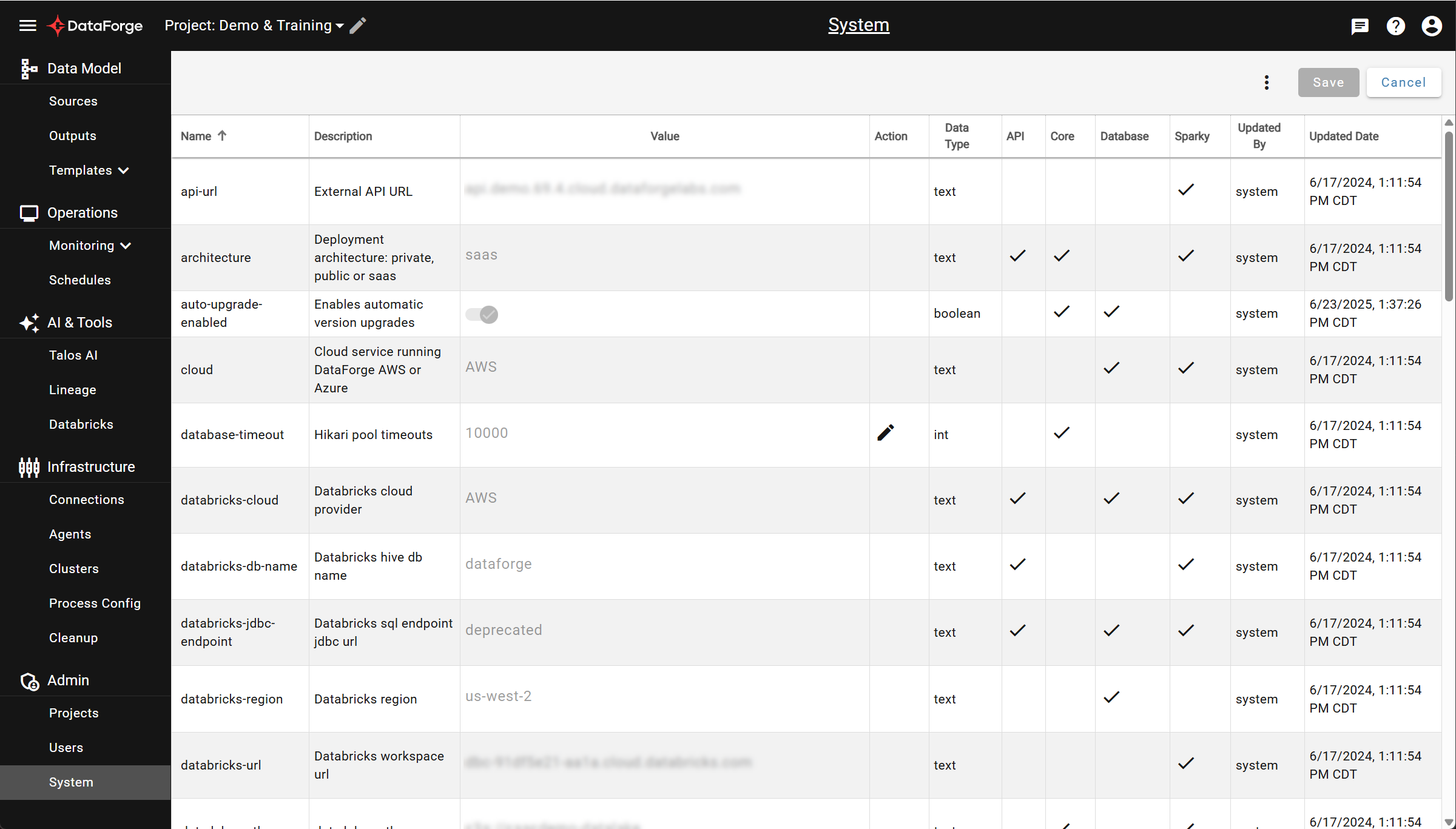
Click the edit icon in the Action column to enable editing for a configuration value.
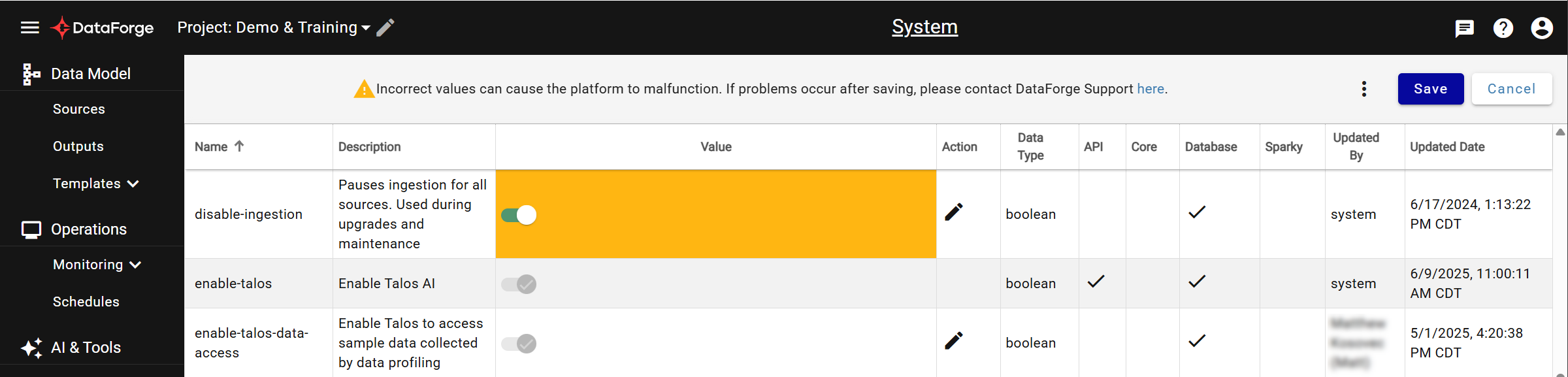
Edited values are highlighted orange; invalid entries show an error. Multiple configurations can be edited before saving. Click Save (upper right) to apply changes, or Cancel to undo all edits.
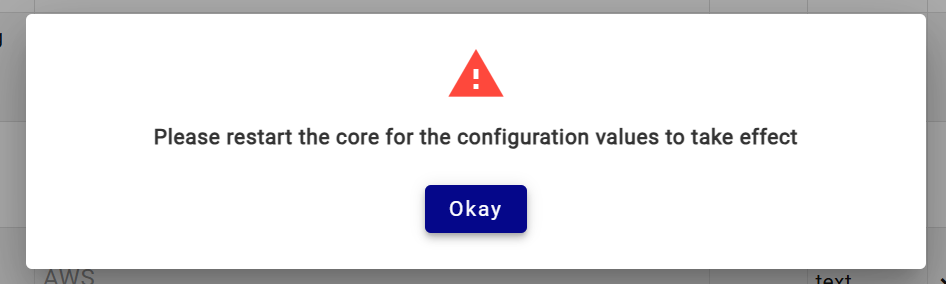
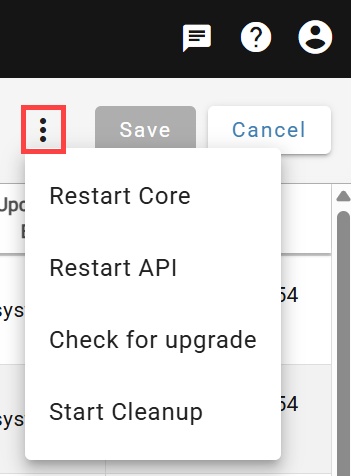
After saving, you may be prompted to restart Core/API services for changes to take effect. Services can be restarted from this screen via the triple-dot menu to the left of Save. The Cleanup Process can also be manually started from that menu.
Spark job tracking
enable-spark-job-tracking is enabled (true) by default. It records bounded
Spark stage summaries, shared driver heap/GC samples, execution context and
cluster failure evidence. It does not change scheduling or automatically size
compute.
Collection uses bounded driver-memory buffers and a background writer. Execution
and phase records remain in PostgreSQL meta.spark_job_tracking_execution; Core
stores independent lifecycle/crash evidence in meta.spark_job_tracking_run.
Delta contains only driver_samples and spark_stage_attempts in the configured
catalog's spark_job_tracking schema. There is no database-to-Delta reconciliation
or duplicate execution/lifecycle storage. Driver samples and execution/phase records target a
15-second flush interval; stage summaries target 60 seconds. Buffer pressure can
trigger an earlier flush. Existing Cleanup applies retention to both stores;
tracking introduces no additional compute schedule.
Both stores retain 180 days of history. PostgreSQL cleanup deletes expired records in bounded batches, protecting active work and unresolved evidence. Delta tables remain queryable through Databricks SQL or Spark with existing catalog permissions; execution/lifecycle data uses authorized PostgreSQL access. Tables remain in place as older records expire. Export and anonymization remain deferred.
Physical Delta maintenance relies on Databricks predictive optimization for eligible Unity Catalog managed tables. Verify its effective setting in the target environment; DataForge does not enable this separately billed service automatically. The custom tracking VACUUM scheduler is removed. Existing execution/lifecycle Delta history from earlier builds is not automatically dropped or migrated.
The collector budget is the smaller of 256 MiB and 0.25% of JVM maximum heap, including headroom for queued/in-flight records and collector bookkeeping. Collection does not wait for writes. If the hard cap is exhausted while a write is stalled, records may be dropped with loss counters. A driver crash loses uncommitted buffered observations; independent Core crash evidence is retained.
Set the parameter to false to disable tracking collection, writes, crash
enrichment and tracking maintenance in Cleanup. Existing business failure handling
and ordinary Cleanup continue. Retained measurements remain available; disabling
tracking does not delete them and also pauses tracking-specific retention.
Restart Core when prompted. Existing Spark drivers retain their startup setting
until they exit; new drivers use the saved value. Cleanup checks the current value
before its tracking step. This setting is independent of enable-timing-logs.
Databricks SQL warehouse requirement
Beginning with DataForge 11.0, every Databricks deployment must provide the system configuration value databricks-warehouse-id. Set it to the ID of an existing Databricks SQL warehouse that meets all of these requirements:
- Serverless compute is enabled.
- The DataForge Databricks identity can access and use the warehouse.
- The warehouse can read the catalogs and schemas used by DataForge.
The configured warehouse is used by expression validation, the Source Data View tab, and Talos data queries. DataForge uses the exact warehouse ID you provide and does not select or create a replacement warehouse.
To configure the warehouse:
- In Databricks, open SQL Warehouses and create or select a serverless warehouse.
- Copy the warehouse ID from its connection details.
- In DataForge, set
databricks-warehouse-idto that value and save the system configuration. - Restart the API and Talos services when prompted.
If the setting is missing or the warehouse cannot be used, DataForge shows the configuration error during expression validation, in Data View, and in Talos instead of silently selecting other compute.